

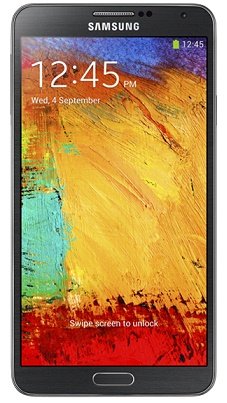
How To Root Samsung Galaxy Note 3 On Lollipop 5.0 (SM-N900, SM-N9005)?

How To Root Samsung Galaxy Note 3 On Lollipop 5.0 (SM-N900, SM-N9005)?

Hi guys, this tutorial will help you to root your favourite Samsung Galaxy Note 3 SM-N900 or SM-N9005 running on Android Lollipop 5.0 firmware. This method is so easy that even your kinder garden kid can do it without much hustle.

Ad

But, please note that rooting will void your warranty, but you can always unroot it to reinstate warranty. SamsungSFour.Com will not be liable for any damage caused as a result of executing the below given steps.

Before proceeding with the procedure given here please make sure that you have made a complete backup of your phone memory including contacts, photos etc. Also the phone battery should be charged to a min of 80%.

Steps To Root Samsung Galaxy Note 3 SM-N900 and SM-N9005 running on Android Lollipop 5.0 firmware

1. First please download the files for rooting Samsung Galaxy Note 3 SM-N900 or SM-N9005 from the below given links;

a. Auto Root Package For Galaxy Note 3 SM-N900

b. Auto Root Package For Galaxy Note 3 SM-N9005

2.  Once downloaded please extract it to find similar files as showing in the below screenshot;

How To Root Samsung Galaxy Note 3 On Lollipop 5.0 (SM-N900, SM-N9005)?

3. Now enable "USB debugging mode" on your Samsung Galaxy Note 3 SM-N900 or SM-N9005 from Settings->Developer Options->USB Debugging. Alternately you can try the detailed tutorial given below for enabling USB debugging mode on your device.

How To Enable USB Debugging On Galaxy Smartphone (Lollipop 5.0 or Higher)?

4. Once it is done you have to enter your Samsung Galaxy Note 3 SM-N900 or SM-N9005 into "Download Mode", to enter switch off your device and press and hold "Volume Down+Home+Power buttons at the same time until you get the warning screen like the one given below.

How To Root Samsung Galaxy Note 3 On Lollipop 5.0 (SM-N900, SM-N9005)?

Now please click "Volume Up" button to confirm and you will enter into the "Download Mode". The below screenshot shows you the final download mode screen.

How To Root Samsung Galaxy Note 3 On Lollipop 5.0 (SM-N900, SM-N9005)?

4. Now open Odin with admin privileges and connect your Galaxy Note 3 SM-N900 or SM-N9005 to your PC using the USB data cable. An "Added" message from the Odin confirms a successful connection. Now click the "PDA" or "AP" button in the Odin window and select the extracted ".tar.md5" file from your PC desktop.

Please make sure that “Auto Reboot” and “F. Reset Time” options are only check marked in the Odin.

5. Once confirmed click the "Start" button on the Odin and wait for the rooting procedure to get completed. When it's done your Note 3 will restart and it will attain superuser privileges.

You can confirm whether the procedure was successful or not from the "Pass" message in Odin...Enjoy..

If you have faced any issues while rooting your Samsung Galaxy Note 3 SM-N900 and SM-N9005 running on Android Lollipop 5.0 firmware, please feel free to post it in the comment section below, don't worry I will help you as fast I can.

If "How To Root Samsung Galaxy Note 3 On Lollipop 5.0 (SM-N900, SM-N9005)?" tutorial really helped you, please give a like/share on social networking websites by using the below given buttons.

Ad

Comments   

#9 +3 Monico Francis Dolor 2016-01-31 02:09
Quoting Thomas:
Quote:
Ok I misread your posted question. My Version is Samsung Galaxy Note 3 SM-9005

That is weird. Are you sure that your phone is not service provider locked.
Hi Thomas, I am pretty sure as I had it upgraded myself from Android 4 to Lollipop sometime back. Is there anything I need to do so I can use what I downloaded from your post?
#8 -2 Thomas 2016-01-30 18:35
Quote:
Ok I misread your posted question. My Version is Samsung Galaxy Note 3 SM-9005
That is weird. Are you sure that your phone is not service provider locked.
#7 +1 Monico Francis Dolor 2016-01-29 09:51
Quoting Monico Francis Dolor:
Quoting Thomas:
Quoting Monico Francis Dolor:
Hi, I tried the steps but I am getting a failed attempt
Added!!
Enter CS for MD5..
Check MD5.. Do not unplug the cable..
Please wait..
CF-Auto-Root-hlte-hltexx-smn9005.tar.md5 is valid.
Checking MD5 finished Sucessfully..
Leave CS..
Odin engine v(ID:3.1005)..
File analysis..
SetupConnection..
Initialzation..
Get PIT for mapping..
Firmware update start..
SingleDownload.
recovery.img
NAND Write Start!!
FAIL! (Auth)

Complete(Write) operation failed.
All threads completed. (succeed 0 / failed 1)
I

Could you please confirm your phone model number and firmware version.


My Version is 5.0
N9005DXUGNK1
Kernel Version is 3.4.0-3643614
Phone number is Singapore number +65 9819 xxxx


Ok I misread your posted question. My Version is Samsung Galaxy Note 3 SM-9005
#6 0 Thomas 2016-01-29 09:39
Quote:

My Version is 5.0
N9005DXUGNK1
Kernel Version is 3.4.0-3643614
Phone number is Singapore number +65 9819 xxxx
Firmware version is fine. But the latter part, I asked for your phone model number, not "phone number". Please refrain from posting your phone number in any commenting system.... :)
#5 +1 Monico Francis Dolor 2016-01-29 08:27
Quoting Thomas:
Quoting Monico Francis Dolor:
Hi, I tried the steps but I am getting a failed attempt
Added!!
Enter CS for MD5..
Check MD5.. Do not unplug the cable..
Please wait..
CF-Auto-Root-hlte-hltexx-smn9005.tar.md5 is valid.
Checking MD5 finished Sucessfully..
Leave CS..
Odin engine v(ID:3.1005)..
File analysis..
SetupConnection..
Initialzation..
Get PIT for mapping..
Firmware update start..
SingleDownload.
recovery.img
NAND Write Start!!
FAIL! (Auth)

Complete(Write) operation failed.
All threads completed. (succeed 0 / failed 1)
I

Could you please confirm your phone model number and firmware version.


My Version is 5.0
N9005DXUGNK1
Kernel Version is 3.4.0-3643614
Phone number is Singapore number +65 9819 xxxx

Please click the below icons to login using Google, Twitter or Yahoo accounts to post a comment.

Please Like Our Facebook Page

Share This On

Which one is your favourite Mobile OS?

Recent Forum Posts

We have recently posted the detailed tutorial on how to enter into the Android Download Mode and exit from it on the Marshmallow firmware running Sams...
Hi finally we have got the Android 6.0.1 Marshamallow firmware for Samsung Galaxy A7, thanks to sammobile.com. Please follow this link; http://www.sa...
Loader
Don't have an account yet? Register Now!

Sign in to your account
